
Lightning fast trip planning
Know where to "recharge"
Live vehicle status Pro
Secure & reliable
Advanced trip planning Pro
Waypoints, return trips & more
Charge with PUMP app
It's like ad-hoc without the QR code
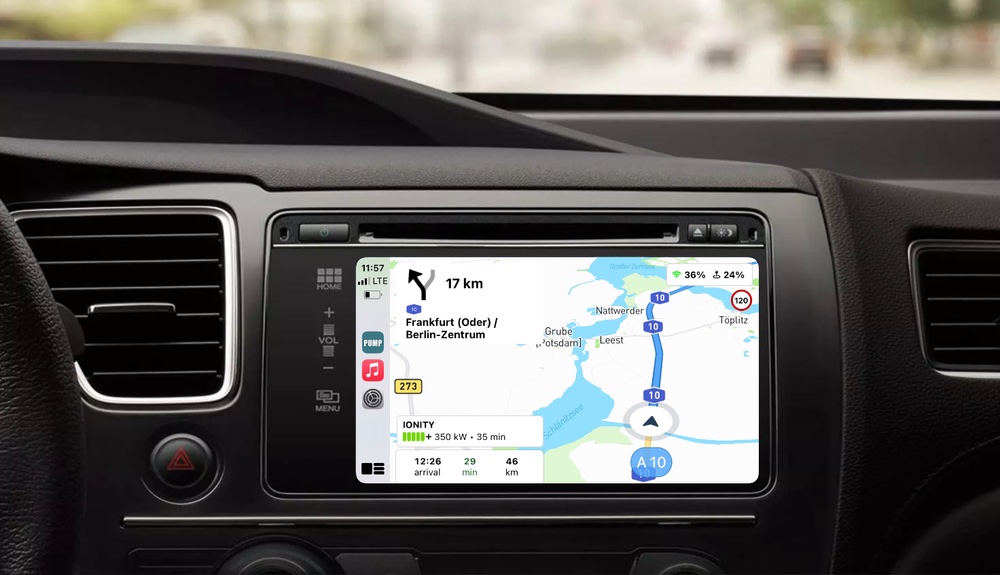
Apple CarPlay support Pro
Plan - Drive - Charge - Repeat
PUMP app - The companion to your electric car
PUMP app
Basic

PUMP app
Pro
49.99 EUR a year -20%
Just in case you have a specific question about the PUMP app, check out this FAQ section, which addresses the most frequently asked questions.
PUMP app makes finding public chargers as simple as possible. When starting the PUMP app for the first time, you choose your specific car, and from that point on, you only see chargers that are compatible with your car. Second, the PUMP app supports different use cases: finding chargers in your vicinity, while on a trip, or at your destination. At any point, you can look up chargers right on the map, including all the important details of a charging station, its availability over the course of a specific day. Third, you can always plan a complete trip with the PUMP app, including all the required charging stops.
For several years, we had 4.5-star reviews at the App Store because people liked the app and its ability to connect to their EV. Since the end of last year, those vehicle connections became more and more complicated to maintain as the car manufacturers started to change or even block their APIs for 3rd parties. In this process, a lot of users got frustrated with the app, as the vehicle connection was one of the key benefits of the app.
In order to fix the issue, we've decided to switch to an external solution provided by smartcar.com, a company that is specialized in vehicle connections. This move not only fixes a lot of those connection issues but also allows us to support 30+ vehicle brands, way more what we were offering in the past.
By switching to this external solution, we had to also make the vehicle connection a Pro feature, which is no longer available in the free version of the app. In addition, there is currently a limitation of one vehicle connection per user, which we hope to find a solution for in the future.
That being said, if you like the PUMP app, feel free to give us an honest review in the App Store or update your previous review in case you changed your mind. We highly appreciate your feedback.
PUMP app
Basic
PUMP app
Pro
49.99 EUR a year -20%
No, not really. PUMP connect is our newest member of the PUMP family: an EV charging platform that allows you to fully manage charging stations for private, semi-public, and public use. If you want to learn more about PUMP connect, check it out here
Simple answer: not at the moment. We are aware that many Android users would like to use the PUMP app on their phones, but given our current capabilities, we have to focus on iOS at the moment.
PUMP app does not know about specific roaming services like EnBW Mobility+, Shell Recharge, etc. We are focusing our service on the actual charging operators or CPOs in the first place, because EV drivers usually have their preferred operator when doing public charging. If you are in doubt when it comes to a specific charging service, look up the charger in the app of your roaming service and check if they support it. Nowadays, charging services usually have such a huge coverage, which typically overlaps with the chargers listed by PUMP app.
When planning a trip, there are typically two phases to consider: before the trip and doing the actual trip.
Before the Trip
Even before getting into your car, it's always a good idea to check on the phone what your planned trip looks like by entering your destination and, if necessary, your start. Set your battery charge to the level you are planning to start with and hit "Plan Trip" in the app. By that, you get an idea of how many charging stops you require, what operators are selected, and what your total travel and charging time looks like.
Doing the actual trip
When you are ready to go, just enter your destination and plan your actual trip. Keep in mind that the trip could look a bit different this time as the weather or traffic changes. In case your car is connected to PUMP, we already know your current battery level. If not, just set your current level and replan. In case you don't like certain operators or charging stops, you can always prefer and avoid certain operators or remove a specific charging stop. Alternatively, you can check your route by zooming in and manually select a charging stop along the route.
If your car supports CarPlay, your trip shows up on your infotainment and you can start your navigation. No matter if you use the app or CarPlay, you always see your next charger in the display and your expected battery level at your next stop. While arriving at your next charging stop, charge the car to the recommended battery level and continue your trip. If you decided to charge shorter or longer for whatever reason, make sure you are recalculating your next stop by stopping the current session and recalculating your trip either on the phone or in CarPlay. Repeat those steps until you arrive at your destination.
Routing Options / Charging Profile
At PUMP we have selected a couple of defaults while calculating trips for you: the start and arrival battery level or at a charge stop. Would you like to avoid highways or toll roads? You always find those options in the general Routing Options section of the menu or within the Charging Profile of your selected car. Make sure you adjust those to your needs before planning a trip.
Sometimes we can't calculate a route given your input. There are many reasons why this might be the case, and it is not always the end of the story. Let's look at the main reasons and how to avoid this from happening.
No chargers available in a certain area Most of the time when this happens, you are trying to find a route in an area with not enough chargers or chargers missing in our database. Even though we have more than 300.000 charging stations in our database, there is still a chance of a few areas in Europe which are not covered yet or are not yet sufficiently supported. If this is the case, check the respective area on our map and get an idea if chargers are available or not. Sometimes it could help to nudge the PUMP app in the right direction: if there is an option to take a different route with better coverage or to an off-route charger, add a waypoint that makes PUMP consider a different route and plan again.
Too limiting battery settings The second most common reason for a failed trip is too demanding battery level settings, be it at the start, at charging stops, or the destination. Make sure to start with the highest battery level possible; try not to arrive with too high a battery level at your destination or a charging stop. In other words, try to maximize your range. If you are worried about arriving at your destination with a too low battery level, just check if there are slow chargers at your destination which you can use to recharge overnight.
Too low charge level at the start Starting a route with too low a charge is a bit of a challenge: the PUMP app always looks for a route on the direct way to the destination and only accepts small detours for possible charge stops. This is not a problem on a normal trip, but at the start of a route it can lead to no charge stop being found if the battery level is too low. In this case, first look for a suitable charging station in the area, charge there first, and then plan your further trip as normal.
At this point, we don't offer alternative routes while planning a trip. This is something we are working on right now. In the meantime, there is a workaround available: waypoints. In PUMP app Pro, you can add waypoints to your trip, which will help PUMP app calculate an alternative route to your destination. Sometimes it's enough to just add another waypoint to achieve the route you wanted to see in the first place.
This is one of the main ways to influence the charge planning: below the charge planning, the list of relevant providers on the route is displayed, and you can adjust it according to your preferences. Prefer or avoid certain providers, or leave the provider untouched if you don't mind charging there. PUMP app will then follow your preferences in further planning. In certain cases, it can still happen that a provider you want to avoid is included in the planning. The reason for this is simple: if there is no reasonable alternative, PUMP app will use this provider to calculate at least one route.
In addition, you can explicitly avoid chargers by removing them from the trip or choose a charger on the route yourself. To do this, zoom in on the map until we show you the alternatives, select a charger, and add it to the route.
There are basically two different strategies for planning routes with an electric car: with as few but long stops as possible or with more but shorter stops. What is the difference, and how do I follow each strategy?
Most electric vehicles charge with a changing charging curve. This means that the charging rate is much higher when the battery level is low compared to when it is high. The rule of thumb is that the time to charge to 80% is about the same as the time needed to charge the last 20%. Therefore, use the full battery capacity only on the first leg, where the vehicle can be charged up to 100% before departure without having to wait for a long time. On the following legs, no more than 80% should be charged.
Strategy: fewer, but long stops
With this strategy, you want to make few stops and drive longer legs. In return, it is accepted that the respective charging stop may be a bit longer. If you charge up to 80%, it will typically take 30–45 minutes, depending on the vehicle. In the PUMP app, this is achieved by setting the maximum charge level at the charge stop to, e.g. 80% in the settings route options. Higher values are, of course, possible but not really recommended due to the then very long charging time. In case we are not planning your charge at a stop to your needs, simply charge up your car as desired and replan your trip from there with your intended charging level.
Strategy: more, but shorter stops
With this strategy, you accept more stops, but charge always at a higher rate until the optimum charge level is reached, at which point the vehicle's charging speed decreases more sharply. This depends on the vehicle and can be adjusted in the PUMP app in the settings route options. Here, the maximum charge level at the charge stop is set to, e.g. 60%, which usually still allows a high charge speed. In the end, such a stop is in the area of 15 min and is still long enough for a bio break or a short coffee.
At PUMP we choose the best chargers based on a set of criteria, something you typically cannot do manually by just looking at a map. Without going too much into the technical details, here are a few of the criteria we use while finding the most appropriate chargers for your trip:
- the consumption of the car and by that the achievable range, the most important criteria
- the detour required to reach the charger, as we don't want you to waste too much time
- your preferred and avoided operators, you told us so
- the charging profile of your car i.e. the max charging speed
- the max speed of the charger, the higher the better
- the reliability of a charger, the higher the better
- the number of chargers / charge points at a locations, the more the better
PUMP app is known for its simplicity. One of the things we try to avoid wherever possible is permanent filters and settings. Our approach is different: when viewing the map, your zoom level determines which chargers are shown. If you zoom out, you only see Hyperchargers above 150 kW. The more you zoom in, slower chargers will be shown, and on the city level, you see all chargers, including slow chargers with 11–22 kW and below. On top of that, it’s your car that determines which chargers are shown on the map. In addition, you have the possibility to search for charger categories (Fast Charger, Hypercharger, etc.) or for the maximum power (e.g. 150kW and faster).
Good for you. Well, most likely there are no other chargers available. The PUMP app is always trying to select the most appropriate chargers based on several criteria, one of them being maximum charging speed. In case we are missing an available charger, feel free to manually add a charger on the route by zooming in and selecting the respective charger.
Similar to the charging speed, people want us to select only charging spots with more than 4 stalls as an example. We actually have such a criterion already built into our trip planner, but sometimes it is simply not possible to satisfy that criterion, so we have to go back and choose the second-best charging spot, which might have fewer stalls.
Tesla has opened its Supercharger network in Europe for other brands. This does not cover the whole network, but increasingly more locations. These are very easy to use via the Tesla app and offer off-peak-time charging rates which are very attractive. If you still don't want to include Tesla Superchargers in your route planning, just deselect them in the trip below. More details on Tesla SuperChargers can be found here.
You don't have to use the built-in navigation when using the PUMP app, but you are, for obvious reasons, losing the ability to monitor your battery level at your destination and the real-time view of your next charger. If you still want to use apps like Apple or Google Maps, just click on the share button at a specific location, charger, or in the route, and your next waypoint or the complete route is used as a destination in the respective app. Please note that in Apple Maps you have to set your starting point back to your current location to use the navigation in Apple Maps. Unfortunately, this is a limitation of Apple.
Yes, if your SoC at your next stop is below 4%, the PUMP app asks you if you want to recalculate the route looking for a new charger.
Currently, you cannot skip a specific charger in your plan. We will support this feature in the future. As a workaround, you can always stop your current session and manually trigger a recalculation, which will then consider your current battery level and eventually choose a different charger.
Starting with version 1.3.2 of the app, this is possible. Select a specific charger and press "Avoid" or search for an alternative charger on the route by zooming in and "Prefer" the selected charger.
Create a plan to your first destination. Tap on the start or the destination and add additional waypoints, reorder them or add a return trip.
This is pretty simple: just enter the charging operator name into the search box, and boom, the map shows only chargers of that operator. This feature also works with charger categories like Hypercharger (>100kW), Fastcharger (>50kW), Tesla Supercharger, or Tesla Destination Charging.
The chargers displayed on the map or in a trip are color-coded according to a simple color scheme which gives information about the state of the charger:
Green = The charger has at least one free charging point.
Red = All charging points/stalls of the charger are currently occupied.
Red with a white cross = The charger is out of service.
Orange with a sand watch = Waiting time expected. Try to avoid it at the moment.
Teal = No status information is available for this charger.
Chargers with a lightning bolt are fast chargers > 50 kW
At the lowest zoom level of the map, only fast chargers with > 150 kW are shown. The further you zoom into the map, the slower chargers are also displayed. When you are at the highest zoom level, the charging points and the operator of the charger are displayed.
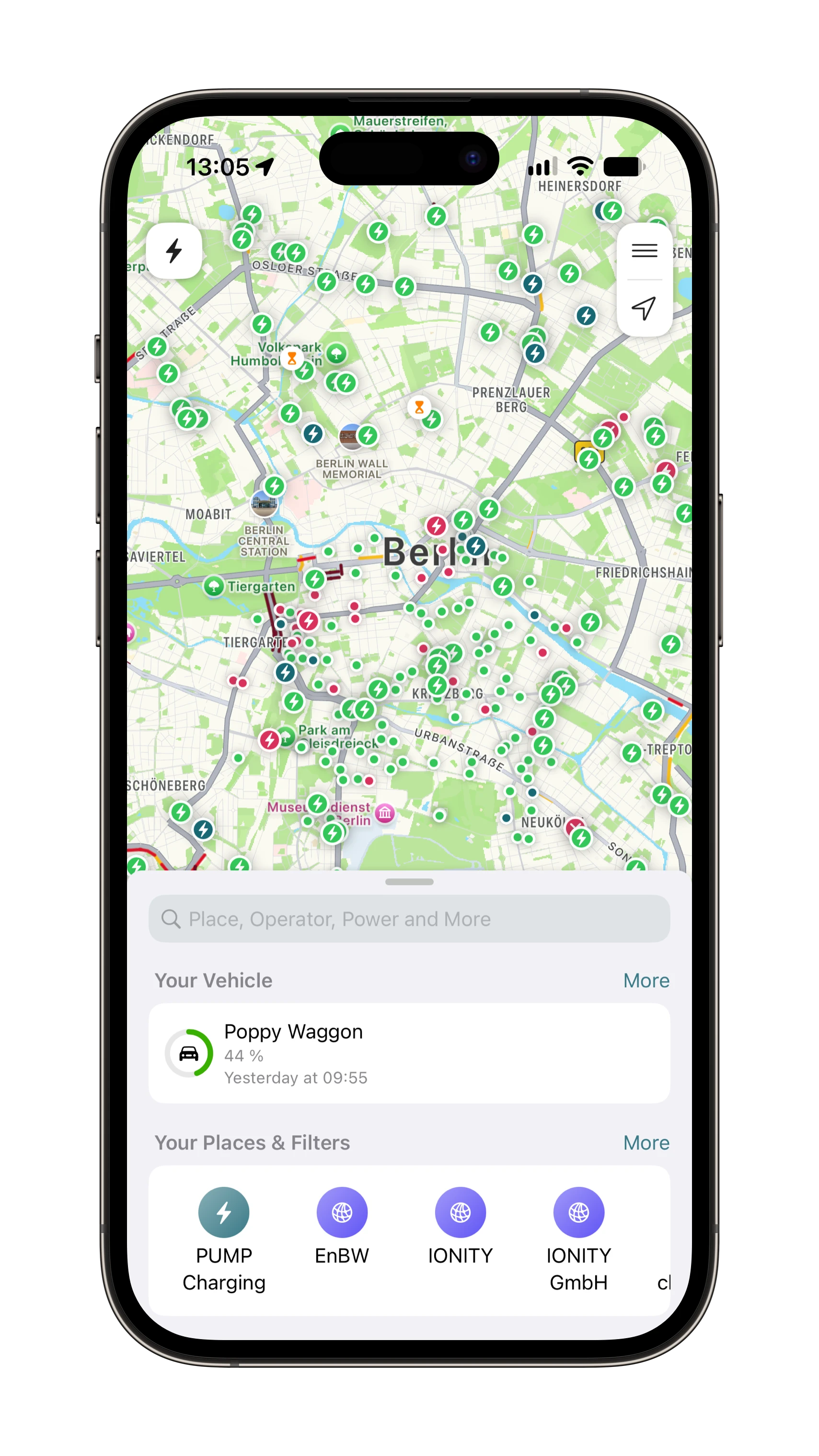
We are currently supporting vehicle connections with more than 30+ brands. Your vehicle is most likely supported by us. Here is a short list of the most often connected vehicle brands:
- Audi
- BMW
- Citroën
- Cupra
- Dacia
- Hyundai
- Kia
- Opel
- Mercedes
- Peugeot
- Renault
- Seat
- Skoda
- Tesla
- VW
Starting with our new vehicle connection service, we need to associate each vehicle connection with a user instead of the app. As only one connection is allowed per subscription, you can use the same vehicle connection across multiple devices without running into this limitation.
Besides the vehicle connection, your account also stores your payment details and charging history in case you use the PUMP app to charge your vehicle.
Please make sure that you have good connectivity on your phone. If the issue still persists, try to kill the app and start it again. If that doesn't help either, simply delete the app from your smartphone and reinstall it again. In case your pro membership is not shown after the reinstall, just restore your pro membership on the subscription screen.
In general, we are supporting all current fully electric EV brands and models in Europe. Plug-in hybrid EVs or PHEVs are currently not supported, as the charge planning doesn't make sense in the case of a PHEV. In case you can't find your vehicle in our database, please contact us via the feedback in the settings. We will make sure to add missing vehicles if needed.
When it comes to specific models that seem to be missing in our database, here are a few tips on how to select the right model:
- Specific vehicle models have different battery sizes. Those are typically part of the model name like Hyundai Ioniq 5 RWD 72kWh
- Some vehicles have different charging options, like only AC charging support or a different charging power. In such cases, we have multiple vehicle models available that support the different options. Those are named with AC or 50kW.
- Sometimes the model name changes over time and is not yet reflected in PUMP app. In those cases, use the most appropriate alternative based on model year and model name.
We support multiple vehicles in PUMP app Pro only. If you use PUMP app Basic, you have to delete a vehicle first in order to select another one. There is a current limitation, though, on the number of connected vehicles: at the moment, we only support one connected vehicle due to the associated costs with each vehicle connection. We are working on ways to remove the limitation in the future.
If you own an EV that is supported by PUMP app, you simply use the same account you use in the official app of the manufacturer. This is typically an account email and the associated password. We are not storing your credentials on our server, but only use an temporary token that is provided by the manufacturer.
In case we cannot connect your car, please check the login credentials, typically your account email and password. If you are still not successful, please contact our support. Just recently, we have changed our vehicle connection feature to a more reliable solution that is even more secure, reliable, and supports more vehicle brands.
We use the same connection that is used by the official apps of the manufacturer. We are just reading a minimum amount of data required for the PUMP app to plan your trips and do not actively modify the state of your vehicle. We do not store your credentials being used to connect your vehicle. At any point in time, you can delete the connection to your vehicle either through the OEM account or through our app. For more details, please check out our privacy policy.
We only retrieve and temporarily store data from your vehicle that is necessary to provide the service you can use in PUMP app. More specifically, we don't track and store the location of the connected vehicle. In case you decide to delete the vehicle in PUMP app, the connection to your car is deleted as well. For more details, please check out our privacy policy.
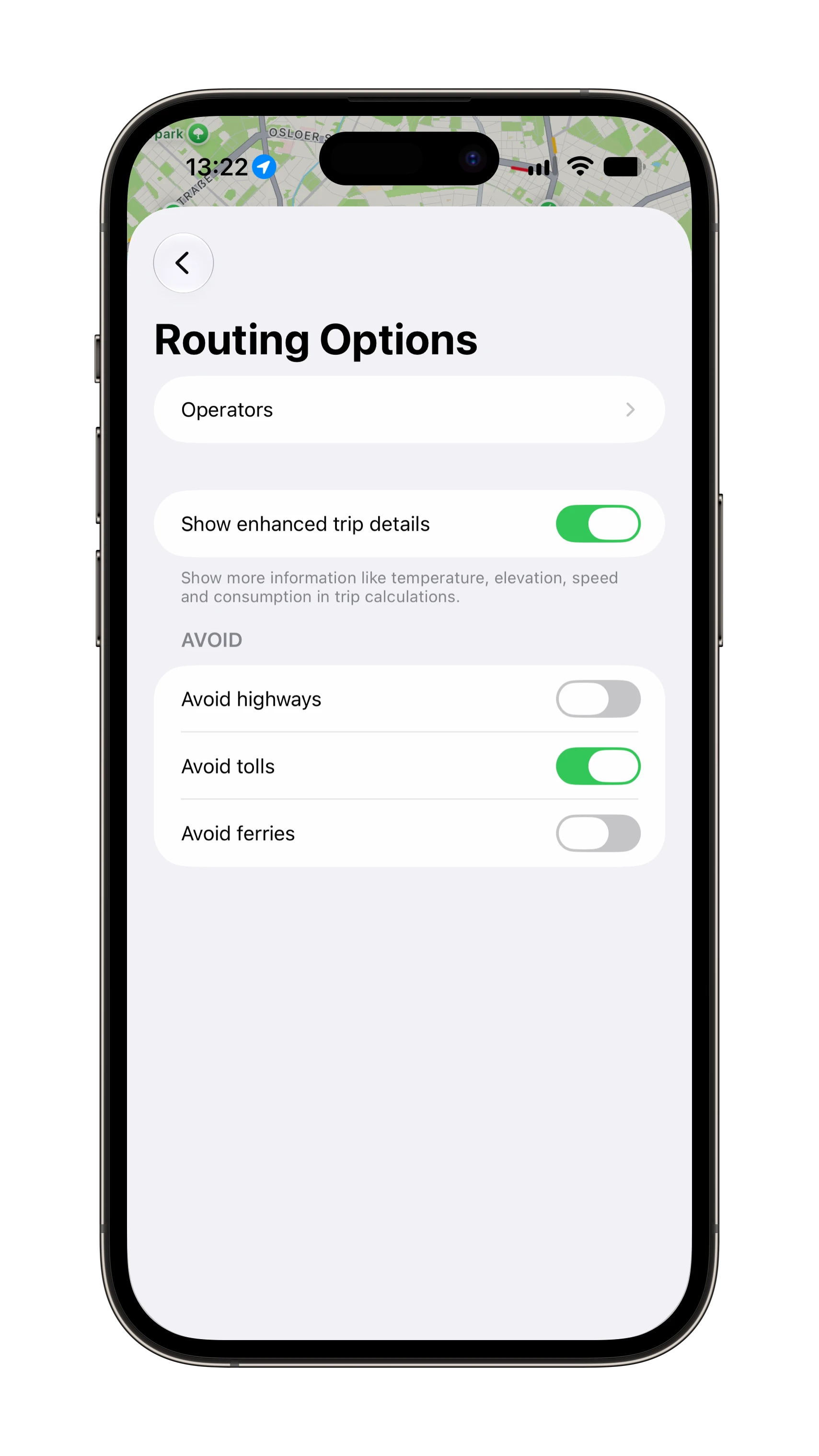
The Routing Options function offers a couple of options used during route planning. Those include certain defaults being used or options to influence the selection of certain routes.
Show Enhanced Trip Details (App Settings > Routing Options)
This switch enables more detailed info in a route leg, like the calculated consumption, the considered temperature, and the height profile of that route section. Those details give you a better idea of the planning parameters being used for the current plan. If the assumed consumption is either too high or too low based on your own experience, you can, for example, adjust the consumption with the respective setting above.
Avoid Setting (App Settings > Routing Options)
In case you want to avoid highways, toll roads, or ferries on your trip, use the respective switch to turn those on and off.
Operators App Settings > Routing Options)
With this option, you can select specific charging point operators or CPOs that are shown by default in the list of CPOs to prefer or avoid in a concrete route. The CPOs selected here are always shown in that list, including the ones being selected for a specific route.
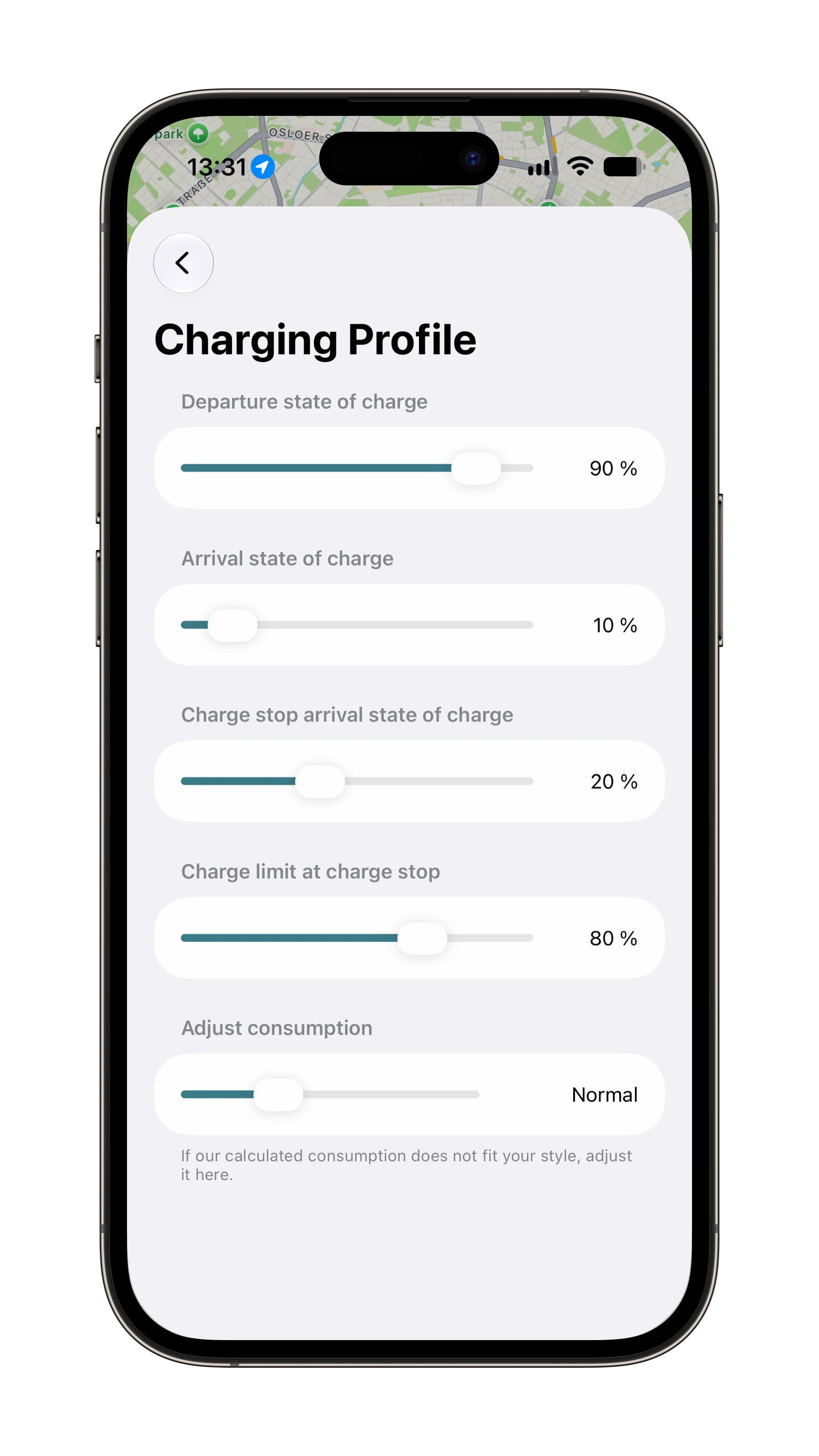
Departure State of Charge (Vehicle Details > Charging Profile)
This is the default battery level used when calculating a trip, and you are not using an online connection to your vehicle.
Arrival State of Charge (Vehicle Details > Charging Profile)
This is the battery level at your destination while calculating a route. Increase this value if there is no charging station available at your destination.
Charge Stop Arrival State of Charge (Vehicle Details > Charging Profile)
This is the battery level we consider at your charge stops. If you are more experienced with PUMP app and your car, you might lower this value in order to achieve a higher range. If you are unsure about your vehicle range, you might want to increase this value.
Charging limit at the charging stop (Vehicle Details > Charging Profile)
This is the maximum battery level during charging, which we take into account when planning your route. However, we may fall below the charging limit due to your charging curve. In this case, charge at the respective stop for as long as you want and replan the rest of your route.
Adjust Consumption (Vehicle Details > Charging Profile)
Even though we use specific consumption models for your selected vehicle, you might want to increase or decrease the consumption of your car based on your driving style, speed, or additional weight of the car.
You can now charge your car with PUMP app in Germany. We support a growing number of charging providers in our app, which you can use directly without a contract at the prices of the respective provider. Simply pay with ApplePay or a credit card in the app. Please make sure that we issue your invoice to the desired address in case you want to claim your charging process for tax purposes. To do this, you can simply store or change your address accordingly in your Apple account.
On the home screen, there is a button called Charge with PUMP by which you can filter all stations supported by us in your area.
Like other businesses, we reserve a certain amount on your payment method, as we have to check whether the payment method used is valid and works at all before starting the charging process. This amount will, of course, be offset against the final amount or refunded if the charging process was not carried out or in case of a technical problem.
Depending on the charging provider, we also pass along the relevant blocking fees. You can view them in the app before the charging process begins at your chosen charge point.
PUMP app is known for its simplicity. One of the things we try to avoid wherever possible is permanent filters and settings. Our approach is different: when viewing the map, your zoom level determines which chargers are shown. If you zoom out, you only see Hyperchargers above 150 kW. The more you zoom in, slower chargers will be shown, and on the city level, you see all chargers, including slow chargers with 11–22 kW and below. On top of that, it’s your car that determines which chargers are shown on the map.
In order to quickly find chargers of a certain category, we have added 3 categories of chargers on the home screen: Fast Charging, Shop & Charge, and Free Charging. Choose one of those categories to just see chargers of that type. Click into the search field and those categories are shown to you.
This is a neat little feature: just enter the charging operator name into the search box, and boom, the map shows only chargers of that operator. This feature also works with charger categories like Hypercharger (>100kW), Fastcharger (>50kW), Tesla Supercharger, or Tesla Destination Charging.
To access your favorite chargers quickly, mark a charger as your favorite and access them directly from the home screen.
Imagine you’re driving to a charger and you want to make sure that this charger is still available when you arrive. A similar use case is waiting for a charger in your vicinity to become available. Be the first to know. Just open the charger in the PUMP app and hit the bell button. You can now choose to get real-time notifications until you arrive at the charger, continuously or for the next 30 or 60 minutes. We only notify you when no charge point is available anymore.
Finding chargers at your destination is pretty straightforward: just enter your destination, and the PUMP app will show you the next 6 available chargers in the vicinity. Combined with the notification feature, you can easily make sure to find an available charger when you arrive.
When planning a route, we use the average speed that is usually driven on a route due to speed limits, road works, and other influences. This, of course, has a significant impact on the consumption of your vehicle. If you drive faster than average or if your vehicle has a higher consumption than assumed due to a trailer or a roof box, you can correct your consumption up or down accordingly in the route options. It is best to use empirical values here. A roof box or a trailer causes, e.g. a 20–30% higher consumption.
App subscriptions are managed by Apple directly. You have to open your Apple account in the settings or the AppStore and open the subscription settings. In there, you can stop a subscription by removing the auto-renewal or change it from monthly to yearly or vice versa.
Family sharing is a feature of PUMP app that is enabled by enabling Family Sharing in your Apple Account and adding your respective family or household members to your account. Just open your Apple Account in the iPhone settings or the AppStore, open the Family Sharing section, and add the family or household members.
Every PUMP app Pro subscription comes standard with a 7-day trial period. During that time, you can use PUMP app for free. In case you don't like it, just deactivate the subscription renewal in your AppStore account, and nothing will be charged. After 7 days, the paid Pro subscription starts.
Depending on what you want to tell us, there are several ways to reach out to us.
It is important to send feedback from inside the app instead of just sending us a simple email: the app sends an app identifier as part of the email, which allows us to check the status of the app, your subscription status, and other information that helps us to resolve your issue.
General app feedback or feature request
Just use the in-app feedback function in the main menu.
Trip feedback
Scroll down in the trip and hit the feedback button. Part of your feedback is a link to the respective trip which gives us a chance to look at it in more detail.
Charger feedback
While looking at a specific charger you can send us your feedback regarding this charger via the feedback button. If a charger is missing in PUMP app, use the standard feedback function.
App Store Feedback
We appreciate your feedback in the App Store. Often things resolve themselves over time, but the App Store feedback stays on. After your issues have been resolved, you can always update the feedback you gave us.
We are always interested to learn from you about missing charging networks or specific chargers. Just send us your feedback via the PUMP app menu. If you are a charging operator, we are always open to including your network in the PUMP app. For quality reasons, we typically prefer direct connection to operators rather than going through an aggregator.